 Dukes
Dukes
Broadest
Area Scan
Reports within your alert distance around you.
User Guide
Everything you need to configure Dukes, connect your hardware, understand alerts, and use CarPlay.
Dukes App is a driving companion for iPhone and CarPlay. Pair a radar detector and the map shows live alerts with band, direction, and strength. Even without a detector, you still get community police reports, camera and ALPR locations, hazard alerts, risk context, and turn-by-turn navigation.
Pair hardware, set units, download your region.
Bottom bar, settings drawer, community reports.
Area Scan, Same Road, On Route, report lifetime.
Learning, Temporary Mute, hardware mute.
CarPlay forward HUD. Experimental, off by default.
Live risk vs CSA heat vs learned Ka history.
Essential setup in a few steps. Regional downloads on Wi-Fi are strongly recommended for the best map experience.
Open Dukes App. When iOS asks, allow Location and Bluetooth so the map can follow you and hardware can pair. Notifications are optional (useful for border-crossing legality alerts).
On the map, tap Settings on the bottom bar. Use Bluetooth to add hardware, or App Settings for units, alerts, CarPlay, and downloads. Search inside App Settings works the same way as search on this guide.
No detector? Dukes still works for community reports, cameras, navigation, speed limits, and overlays. Turn on Standalone driving mode under App Settings → Driving & Modes and skip pairing a radar detector.
Enough to drive today. Add recommended downloads afterward on Wi-Fi.
A radar detector is optional. If you have one, tap Settings → Bluetooth → Add Device → Radar Detector. Choose Uniden or Radenso (R4, R4w, R8, R8w, R9, R9w, DS1) or Valentine One Gen2. Power the detector on and stay close for the first pair.
Uniden R7 is not supported — it does not provide Bluetooth connectivity Dukes can use.
Driving without a detector still covers community reports, cameras, navigation, speed limits, and overlays.
For AL Priority or TMG, use Bluetooth → Add Device and pick the matching laser-defense category. ALP pairing needs the PIN shown on the ALP pad. TMG pairing uses the code shown in the device footer.
ALP Parking / Detection / Defense is controlled from the ALP pad (and from the CarPlay JTK button when connected). Skip this step if you do not have a jammer.
App Settings → Driving & Modes → Units: pick KM/H or MPH. Distance stays paired (kilometers or miles).
App Settings → Alerts & Audio for radar banners and tones. Voice Alerts for spoken announcements and audio routing (including Media Audio). Road Alerts for cameras, hazards, aircraft, and community police feeds.
Community police alerts need feeds under the Custom Feeds drawer tab, then filter behavior under Road Alerts → Custom Feed Alerts.
Leave Keep screen on enabled under Driving & Modes, mount the phone where you can glance safely, and drive. The app reconnects to remembered devices and can learn GPS lockouts after you turn that system on.
You can drive without regional packs. Some road-matching features are much stronger with them installed.
Enhanced Speed Limits for your state or province. Same Road — Strict and On Route police filtering need current speed packs. Without them, those modes will not silently fall back to a looser filter.
CSA Enforcement Overlays (historical heat on the map) and CSA risk score data (refines live Risk Score). Both live under Data & Downloads. They are separate files.
Camera database extras (Enhanced US/CA or ExCam), aircraft identification download, and laser voice packs if you use ALP or TMG.
The app is built around a single live map. These are the controls and drawer tabs you use every day.
NAV — Opens navigation search when you are not navigating. While navigating, tap the blue Nav control for the route card (end, pause, overview, voice).
Recenter — Centers the map on you and re-enables follow.
Settings — Opens the bottom settings drawer.
Custom or V1 Custom — Quick-toggle for a saved Uniden or V1 custom detector profile when one is configured.
ALP [profile] — Shows AL Priority status when connected. Mode changes still come from the ALP pad or CarPlay JTK.
Report (bottom-right) — Tap for the full report sheet. Long-press about 1.5 seconds submits a quick Police Visible report at your location.
Some tabs hide when Hide detector-specific controls is on, or when your detector does not use K Blocks.
App Settings — Appearance, Driving & Modes, Map & Display, Alerts & Audio, Visual Alerts, Voice Alerts, Road Alerts, Navigation, CarPlay, Diagnostics, Data & Downloads, Backup & About. Includes in-app settings search.
Ready to Drive — The featured card at the top of App Settings. It is a status page, not a settings editor. It shows Driving Mode, Units, CarPlay, Voice Alerts, Alerts & Audio, Navigation, Road Alerts, Speed Limits, Required Data, Custom Feeds, and Backup, and jumps you into those screens.
Bluetooth — My Devices: detectors, ALP, TMG, Flic 2. Add Device, reconnect, forget.
Default Settings — Uniden Default / Custom profiles, or V1 Settings when a Valentine One Gen2 is connected.
Location Automations — Named areas that apply settings when you enter or leave. Older versions called these Geofences.
K Blocks — Per-frequency K-band filters for Uniden models (not DS1 or V1).
Muting — GPS lockouts, Temporary Mute, Dynamic Muting, lockout map, import/export.
Encounters — Alert session history: Feed, Map, Insights.
Custom Feeds — Add community police/data feeds, bundles, and quick setup.
Phone: tap Report for police, traffic, crash, hazard, weather, road closed, and more. Long-press for instant Police Visible.
CarPlay: the report button opens a category grid, not an instant police ping. You can reorder those buttons under App Settings → CarPlay → CarPlay Report Order.
Voting (Still There / Not There) is available when you are close to a police report, including thumbs confirmation near the CarPlay speed overlay when that option is on.
First launch offers a guided demo. Replay Onboarding and the Power Features Tour are under App Settings → Backup & About → About.
When a signal is detected, a colored banner appears. Colors and labels tell you the type of threat.
Police radar guns operate on different radio frequencies. Each band has its own color.
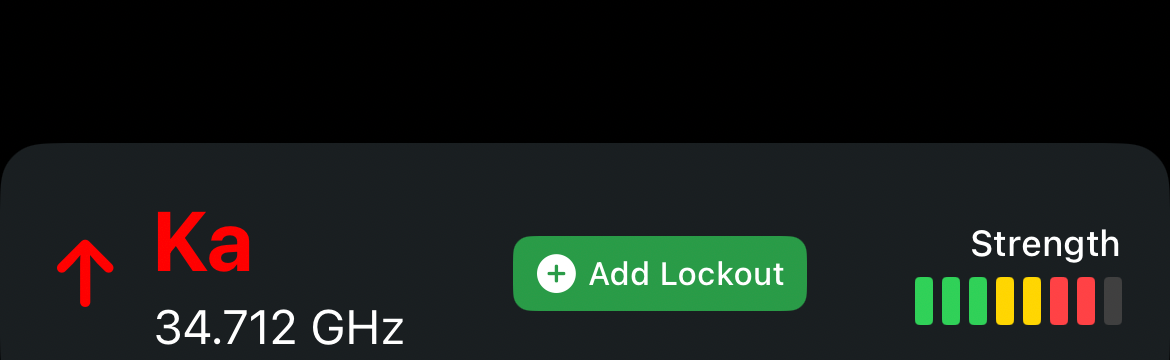
The most common frequency used by modern police radar. Treat every Ka alert seriously. More bars usually means closer.
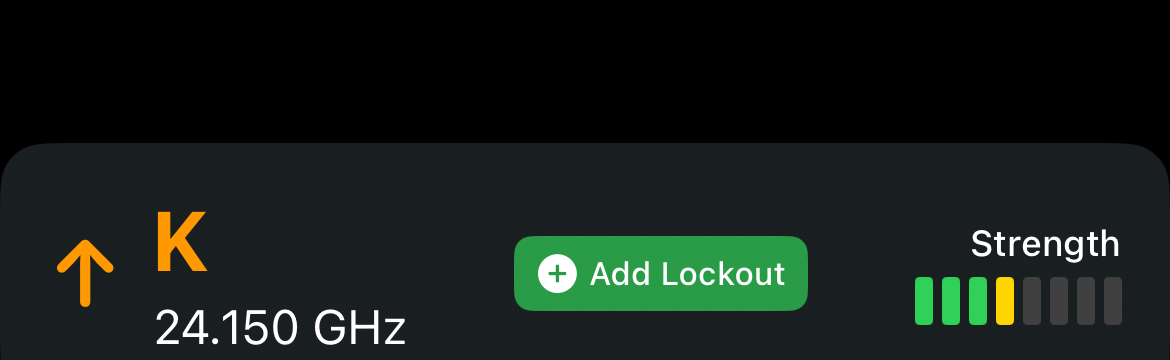
Used by police and also by blind-spot monitors, automatic doors, and speed signs. Context matters — K on the highway is worth attention.
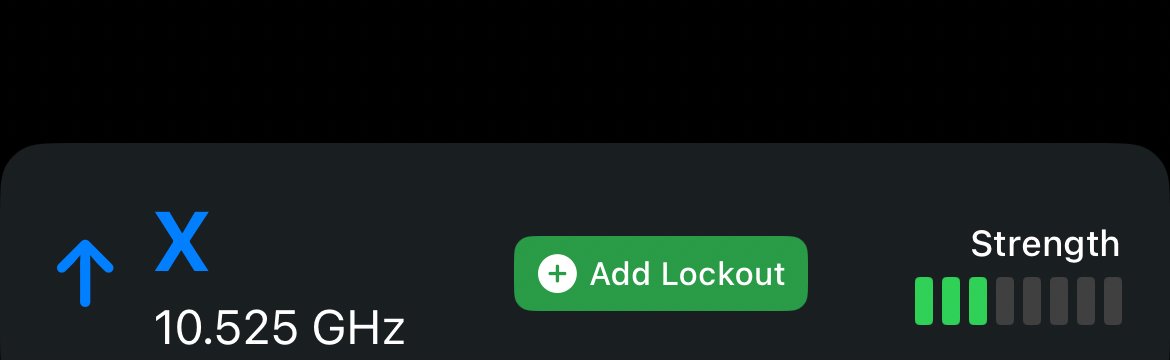
Older frequency. Most X signals come from automatic doors and motion sensors. Rarely used by police in North America, still active in some areas.
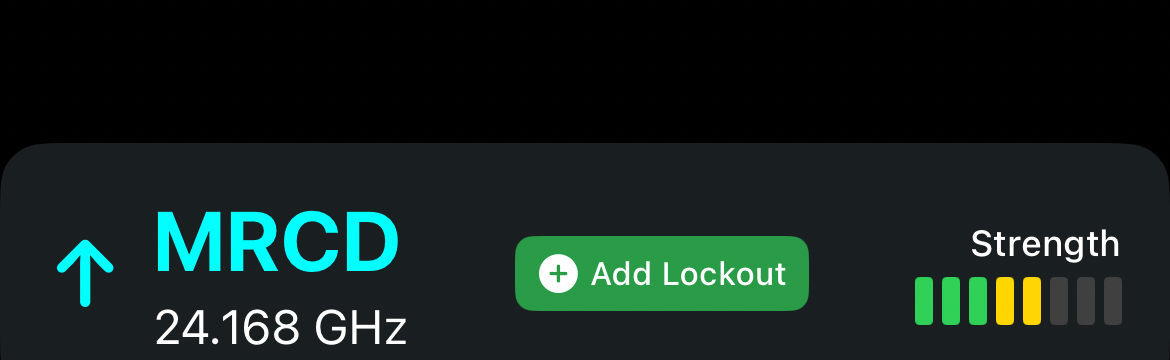
Photo radar used in some regions. Your detector needs MRCD support enabled to catch it.
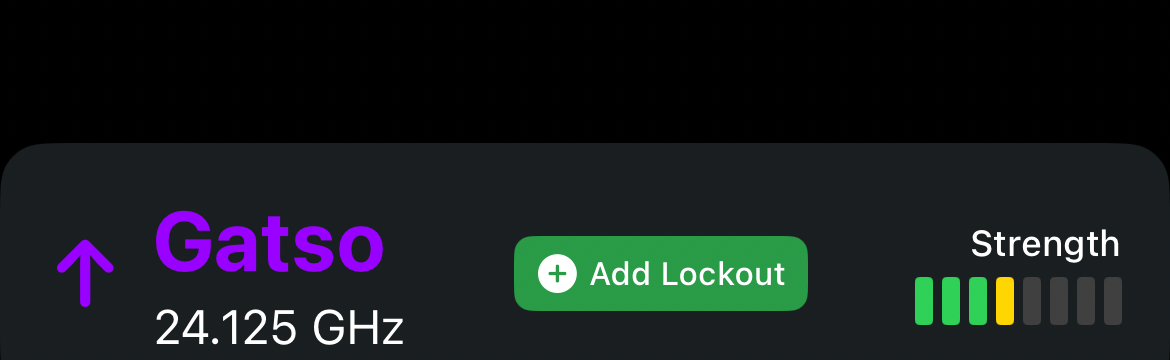
Automated photo-radar speed camera. Detected by compatible radar detectors.
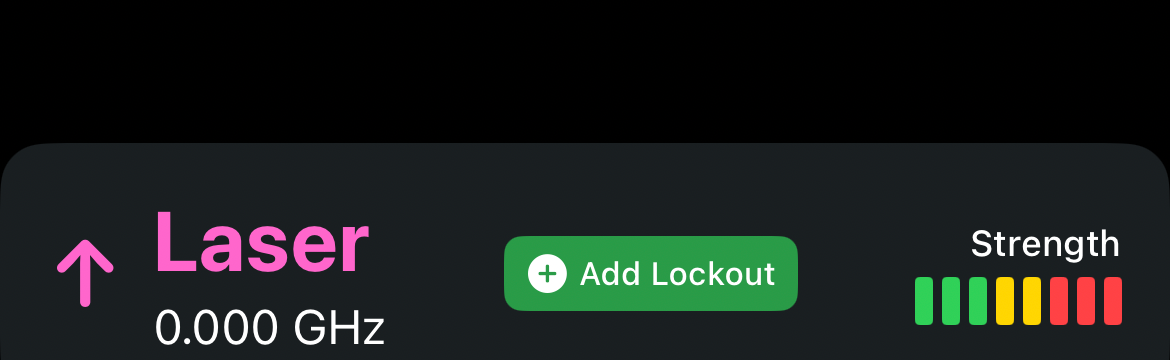
Police laser (LIDAR). Extremely precise. By the time a detector hears it, the officer is often already measuring. A laser jammer is the usual proactive defense when that hardware is legal and connected — a detector alone cannot stop a laser shot.
Banner layout is set under App Settings → Alerts & Audio.
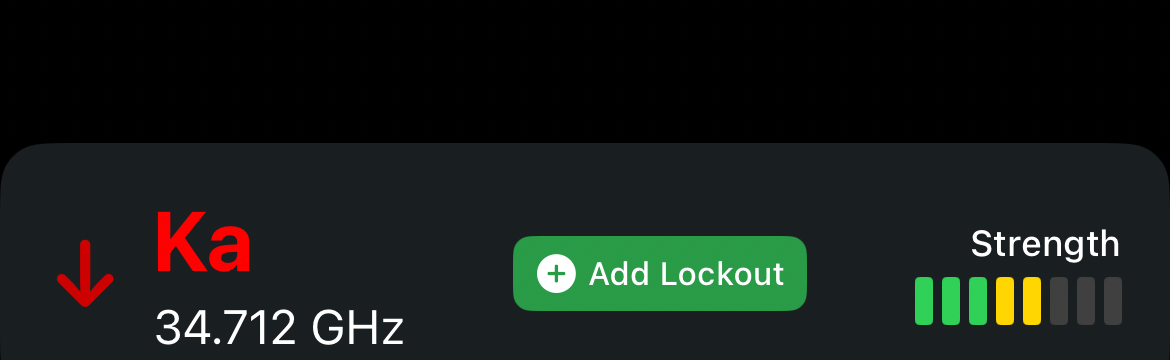
The arrow points backward. Direction arrows are available on multi-horn detectors (Uniden R8/R9 family and V1G2). R4 and DS1 are omnidirectional.
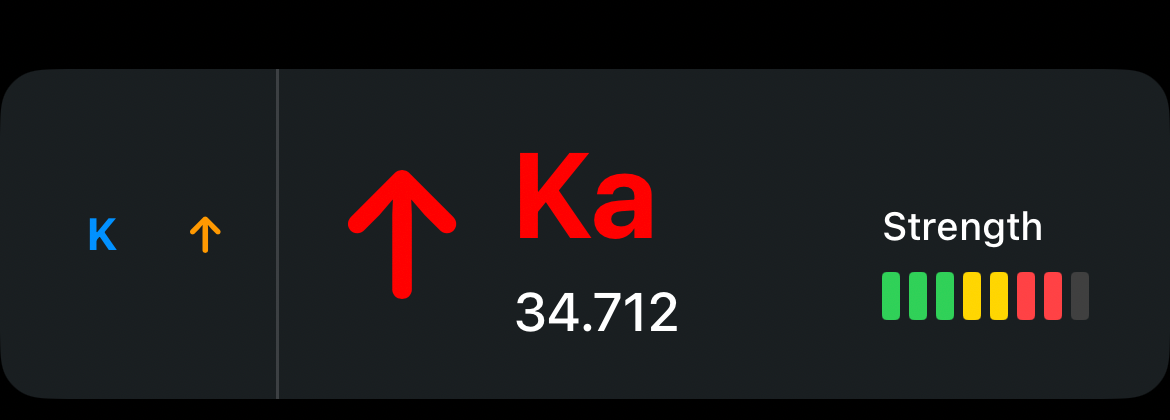
Multiple signals combine into one banner. The strongest or highest-priority signal is shown first.
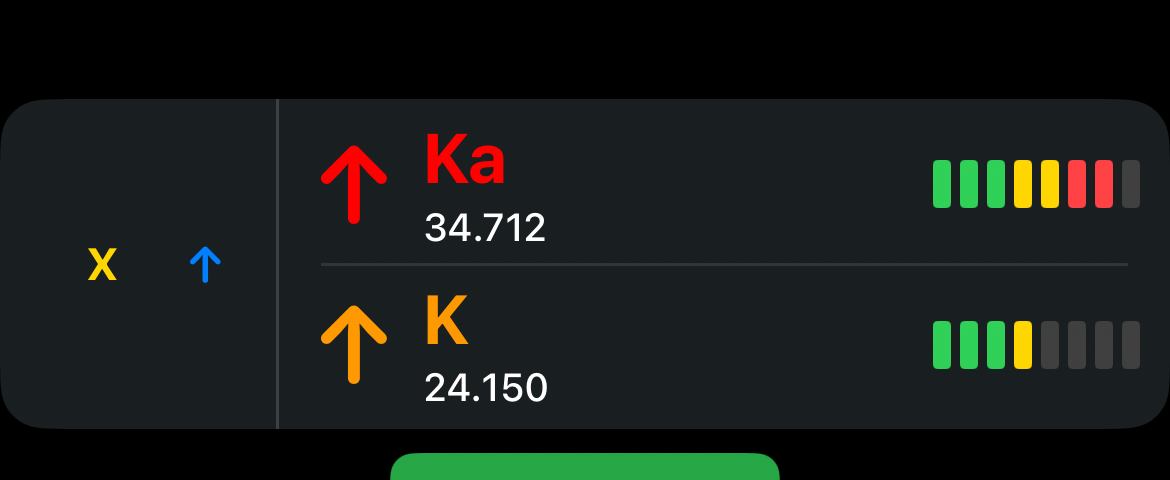
Expert Consolidated shows frequency and strength detail. Radar Direction View adds a map cone for bearing, optional HUD placement during navigation, and optional Adaptive RDV Learning (off by default).
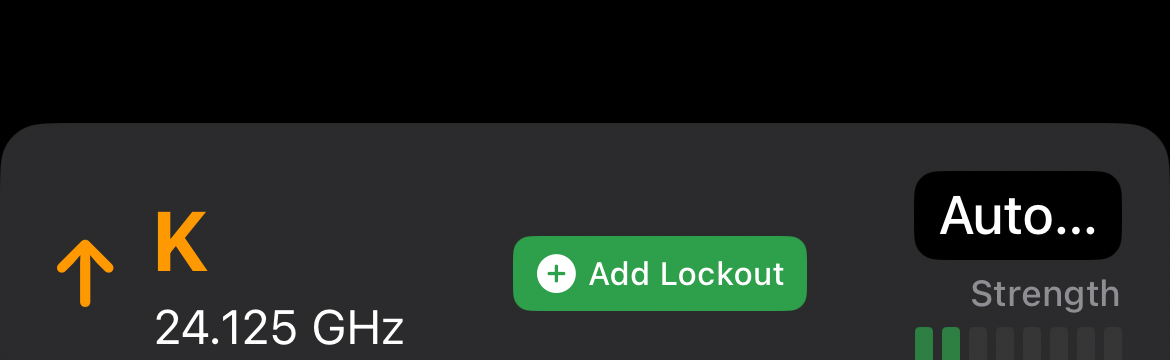
Greyed-out when Grey out muted alerts is on. The signal is still tracked. Audio may be silenced by manual mute, Temporary Mute, GPS lockout, low-speed mute, or Dynamic Muting.
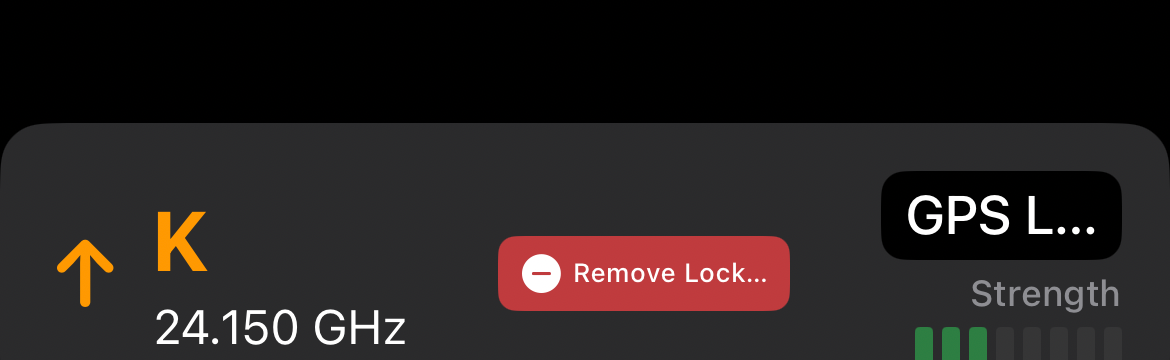
This location is locked out for that frequency. Lock and unlock icons let you manage it on the fly when Manual GPS Lockouts is on.
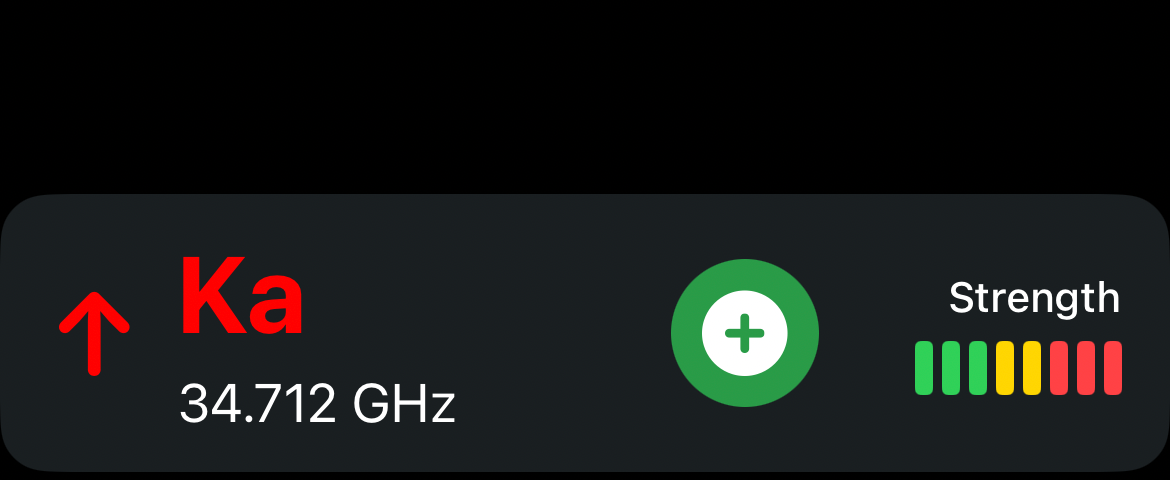
Classic — Large shows bigger banners (up to 2 at once instead of 4).

When Tiny muted banners is on, muted signals shrink to compact pills. Temporary Mute keeps the normal banner visible on purpose.
Community police reports come from feeds you add under Custom Feeds. How those reports appear is controlled under Custom Feed Alerts. Alerts depend on feed availability and how recent each report is — Dukes cannot invent coverage where a feed is down or a report is stale.
Settings›Road Alerts›Custom Feed Alerts
These modes decide which reports get a banner or voice alert. They do not change Threat Horizon. That HUD uses its own forward-threat selection.
Broadest
Reports within your alert distance around you.
Direction aware
Reports in your direction of travel.
Recommended
Prefers your road, with nearby parallel or similarly named roads when map data is incomplete.
Geometry required
Needs a clear match along your road from an updated regional speed pack.
Highway
Strict matching with longer range for highway speeds.
Navigation-aware
Uses your active navigation route. Falls back to Same Road — Strict when you are not navigating.
| Mode | What you see |
|---|---|
| Area Scan | Reports within your alert distance around you. If nothing is clearly ahead on-road, the closest in-range report can still appear. |
| Ahead Only | Reports in your direction of travel. |
| Same Road — Balanced | Default. Prefers your road or corridor, but can include nearby parallel, frontage, or similarly named roads when map data is incomplete. |
| Same Road — Strict | Needs a clear match along your road from an updated regional speed pack. Stays quiet rather than guessing. |
| Highway Early Warning | Strict matching with longer range for highway speeds. |
| On Route | Uses your active navigation route. A report farther down the highway can be ignored if your route exits before reaching it. Reports behind you or on parallel roads stay hidden. When you are not navigating, this falls back to Same Road — Strict — never to Balanced. |
Smart Area Scan and Smart Same Road live under Advanced filtering. They switch behavior with speed instead of staying on one mode.
Road Alerts → Community Hazards → Report Lifetime (also used for police). Each category can use:
Standard — Up to about one hour from the original report time.
30 Minutes — Shorter cap from the original report time.
Live Presence — Stays while the report is still being observed, with a one-hour fallback if presence updates stop.
A later confirmation (thumbs-up / Still There) does not restart the Standard or 30 Minutes clock. Confirmation count and latest confirmation age can still show on pills and map pins.
Construction and road closures keep long-lived behavior and are not on this list.
Police report age star tints the star on pills and map pins by freshness. Show report age on police pills adds text such as “20 min ago.”
Max report age filters tone and voice only. Older reports can still appear visually.
Pill banners keep extra or dismissed alerts as compact chips. They have their own filter mode and distance. Tapping Not There removes the alert; Still There can shrink it to a pill.
CarPlay Police Proximity Glow draws a halo behind police map icons as you get closer (soft / strong / pulse distances). Separate from Flash Nearby Police Pill, which pulses the pill border.
Background alerts and duplicate merging are configured under CarPlay background notifications. Newest matching report wins.
Camera, hazard, aircraft, and community police settings are under App Settings → Road Alerts (older releases used a Safety Alerts menu name).
Speed cameras, red light cameras, license plate readers, and suspected LPR locations. Combined locations can appear as a split banner.

Fixed camera that photographs vehicles over the limit. Default alert distance 400 m.

Intersection camera for red-light violations.

Photographs plates. Not a speed camera. Separate LPR distance and suspected-LPR options.

Nearby cameras of different types shown together.
Database source: Dukes, Enhanced US/CA, or ExCam. Do not rely on a published camera count — it changes as databases update.
Voice modes include All Alerts, Timed Cooldown, Same Road Only, and Smart Same Road. CarPlay camera icons and approach banners are off by default and live in Banner & CarPlay.
Deleted cameras can be restored from Camera Alerts when any have been hidden.
Off by default. Filter with Area Scan or Same Road. Map icon toggles include accidents, traffic jams, jam lines, traffic flow, closures, construction, car stopped, weather, objects, emergency vehicles, broken traffic lights, and general hazards.

A vehicle stopped on or beside the road.

A crash reported ahead.

Active roadwork ahead.

Emergency vehicle reported on the road.
Average-speed enforcement zones. Master toggle is off by default. You can add corridors, choose approach distance, and show icons on CarPlay.
Add your own speed cameras, red-light cameras, ALPR sites, speed traps, and waypoints. Drop a pin, enter coordinates, or import/export a list. See Map Icons for pin styles.
On by default. Notifies you when you cross into a state or province with different radar-detector laws.
Learn recurring false alerts, temporarily silence a signal, or control detector hardware muting.
Drawer›Muting
Turn on Enable GPS Lockouts, then keep Auto-learn lockouts on (it is on once lockouts are enabled).
A pass is counted when you enter the mute radius, the signal matches band and frequency, and — for later passes — you have left the radius and come back. Sitting still at the same door sensor does not earn another pass.
Default is 3 passes to activate. The first detection at a new site counts as pass 1 after a brief dwell. Visit interval defaults to 4 hours (0 means every qualifying re-entry can count).
Learning lockouts are saved but not yet muting. Active lockouts mute matching alerts. Manual lockouts skip learning and become active immediately.
Matching uses the same band, a location inside the mute radius (default 400 m), and frequency within K-band drift (default ±10 MHz). Highway Guard tightens that window at high speed or when Ka is active.
Lockout Retention: Automatic (default) can remove auto-learned lockouts after repeated verified misses. Keep Forever never auto-removes promoted lockouts; you can still delete them yourself.
Overlapping promoted lockouts of the same band are handled carefully so one site is not deleted because of the other.
Use Map of saved lockouts, the searchable list with merge, and import/export (JSON and CSV) in the lockout toolkit.
On by default once you open GPS lockout tuning. Above the activation speed (default 90 km/h) — or when Ka is alerting — lockout matching gets stricter so a real radar near a known false alarm is less likely to be silenced.
Low-speed mute — Optionally silence X/K (and separately MRCD/Gatso) below a speed. Off by default.
Dynamic Muting — Signal-strength muting, Quiet Ride, and PSL muting (mute selected bands below posted limit + buffer). All off by default. These silence Dukes audio; they are not GPS lockouts.
App Tone Blocks — Up to eight app-side K-band windows for Uniden R4/R8/R9 families. Different from detector K Blocks.
Ka Mute Override — On by default. If you have manually muted and a new Ka appears, the detector is unmuted. Separate from GPS lockout Ka protection, which will not apply K-band lockout mute while Ka is active.
Synchronized lockouts — Off by default. When on, promoted X/K/Ka lockouts can also write to detector mute memory on supported Uniden hardware. MRCD/Gatso stay app-side.
Faster hardware mute for GPS lockouts is a V1-only option, off by default, and does not run while Ka is active.
Timed per-signal mute without creating a GPS lockout. Long-press a phone radar banner and pick a duration.
Durations: 5, 15 (default), 30, or 60 minutes.
Supported: Uniden, Radenso, and Valentine radar alerts. Laser, MRCD, Gatso, and unknown bands cannot be temp-muted.
Allow Temporary Mute for Ka is off by default. Use carefully — it can silence Dukes audio for a strong Ka.
Also Mute Connected Detector is off by default. Without it, only Dukes tones and voice are silenced; the detector speaker can still sound. Hardware support varies.
Remove a mute from the Muting list or from the banner action. Temporary Mute keeps the alert visible. A normal tap mute is one-time and has no timer.
Phone, CarPlay muted-banner, and Data Mode can all show Temporary Mute status. CarPlay muted-banner Temporary Mute is on by default.
Four related systems. They are not the same feature.
| System | What you see |
|---|---|
| CSA overlay | Historical enforcement heat on the map. Download regional overlays. Optional heat along the navigation route. |
| Live Risk Score | A percentage and level for where you are now, influenced by live police, radar/Ka, laser, and local patterns. Show threat intelligence is on by default. |
| Historical learning | Downloaded CSA risk packages plus on-device Ka encounter hotspots (CarPlay Historical Ka Learning). |
| Threat Horizon | CarPlay-only forward HUD. Experimental, off by default. Replaces the floating Risk Badge while it is showing. |
Neutral can also appear when there is nothing meaningful to score. These levels belong to live Risk Score. Threat Horizon uses a different forward scale: Low, Elevated, High, Immediate.
Phone display: Banner (Bottom) or Box (Map Widget) (default). Content modes: Risk Only (default), Risk + Confidence, Level Only, Classic.
Sensitivity: Chill (highway), Normal / Balanced, Aggressive (city).
CarPlay Show risk badge is off by default. Enhanced Risk Badge (on when the badge is shown) adds risk level plus day/time context. Optional nearby police count and distance (default radius 12 km). The badge is display-only.
A CarPlay HUD that forecasts what matters ahead of you — live police, historical Ka, enforcement hotspots, laser, and optionally aircraft — instead of listing every nearby report.
Settings›CarPlay›Risk Badge & Threat Horizon
Without navigation it uses the road you are on. With navigation it can follow the route ahead, so a report farther down the highway can be ignored if your route exits first. Same-Street Threats (off by default) can keep police ahead on a matching road name when the road outline is hard to match.
Every style uses the same Threat Horizon logic. The difference is layout and emphasis.
Default
Flush-bottom strip with the primary threat and distance.
Same layout, plus extra community report details such as confirmations and age.
A more compact, clustered look that keeps the same information in a smaller chrome style.
High-contrast HUD with a darker instrument-style appearance, including light and dark CarPlay overlays.
A floating instrument. Its gauge can show CRITICAL when the forward level is Immediate. That label is Threat Horizon, not the live Risk Score badge.
Highest priority when a relevant report is ahead.
Laser context from a connected detector or jammer.
Enforcement heat that is strong enough for the selected sensitivity.
Learned Ka hotspots from your encounters.
Aircraft is optional via Road Alerts → Aircraft Awareness → Show in Threat Horizon. Heat Ahead Sensitivity (default Moderate+) controls how strong a hotspot must be before it appears. Forward levels are Low, Elevated, High, and Immediate.
Threat Horizon Attention is off by default. Options include flash once, flash then pulse, or pulse while active. Flash Primary Text can flash new primary threats; police can alternate red/blue. Per-category toggles: Police and Laser on by default; Risk Hotspots and Ka History off.
Adjust Vehicle Position is off by default. When you turn it on, you can move the CarPlay marker slightly lower or higher in steps from −10% through +10% during heading-up follow. Alerts stay put. Off keeps the classic CarPlay vehicle position.
Apply Vehicle Position is Always (whenever Adjust Vehicle Position is on) or Threat Horizon HUD Only (the offset applies only while the Threat Horizon HUD is visible, then the marker returns to its normal place when the HUD hides).
Optional gates: only above a set speed (default 40 km/h when that gate is enabled), or Only When Threat Appears so a quiet snapshot hides the HUD. While Threat Horizon is visible, it can replace the floating Risk Badge. When the HUD hides, the badge can return if you enabled it.
Settings›Diagnostics
Enable Threat Horizon Diagnostics (off by default, stored on the device), Mark Issue, export, and clear the log. Logs are not uploaded automatically.
Every detection session can be saved for later. Open the Encounters drawer tab.
Feed — Searchable list with band filters and labels.
Map — Sessions plotted on the map.
Insights — Patterns over time.
Open an encounter for the route, signal-strength timeline, first detection, Advanced Warning, adjustable Estimated Acquisition Threshold, notes, labels, detector/firmware, and for laser: gun name, mode, source, and timeline. Radar direction can show Front → Side → Rear on the map.
Sources include Uniden radar/laser (including Laser TP when installed), V1G2, ALP, and TMG. Jammer state and JTK changes are recorded when the hardware reports them.
Export native .dukesencounters, summary CSV, detailed per-sample CSV, telemetry CSV (includes laser gun and raw laser ID columns), and KML. Import and delete-all are in the overflow menu. Screenshot Mode is available on the detail screen. Non-laser encounters can use Explain Encounter.
There is no separate encounter auto-delete setting. Clearing is manual, or included in a full backup restore.
Named areas that change settings when you enter or leave. The drawer tab is Location Automations.
Create an area, draw a polygon on the map, then set Where, When, Actions, Priority, and review the Summary.
Actions are grouped: Alerts (cameras, community, voice/tones, GPS lockouts, some navigation and privacy), Laser (ALP device profile A/B/C, TMG detection-only), and Radar (Uniden overrides, V1G2 overrides, ALP band muting, app Dynamic Muting).
Boundary Behavior uses Entry Buffer, Exit Buffer, Entry Delay, Exit Delay, Minimum Stable Time, and Ignore Poor GPS Accuracy so the automation does not flicker at the edge of the zone.
If two automations overlap, the higher-priority one wins for conflicting settings. Leaving the area restores the previous settings. Detector reconnect is handled by Bluetooth auto-connect, not by the automation itself.
Show geofence borders (Map & Display) draws automation boundaries on the map. CarPlay can show a brief toast when you enter or leave a zone.
Manage everything from Bluetooth → My Devices. Remembered devices auto-connect. Use the device detail screen for Connect, Disconnect, Forget, and per-device options.
Drawer›Bluetooth›My Devices
Directional radar detectors with GPS lockouts and profiles.
Omnidirectional Uniden models with K Blocks support.
ESP connection, arrows, and saved detector profiles.
Bluetooth radar with Uniden-style pairing. Omnidirectional.
Laser defense with JTK, profiles, and encounter logging.
Laser system with JTK, detection-only, and encounter logging.
Physical shortcut button for mute, lockout, JTK, or report.
Supported over Bluetooth: R4, R4w, R8, R8w, R9, R9w. R7 is not supported.
Direction: R8/R9 families are directional (front/side/rear). R4 is omnidirectional.
Default Settings captures or applies the Default profile. Custom Profile is a full editor (bands, city/highway, GPS, display, expert options) and can be toggled from the map bar.
K Blocks are Uniden-only frequency notches for BSM. DS1 does not show this tab.
Gatso and MRCD, GPS lockouts, hardware mute, and optional Uniden Laser Pack / Laser TP logging are available where the hardware supports them. App Tone Blocks are R4/R8/R9 only.
Pairs as V1connection (often not listed in iOS Settings → Bluetooth). ESP connection can show “Connected, waiting for V1 data.”
Modes: All Bogeys, Logic, Advanced Logic. Optional indicators on the phone map, CarPlay map, and Data Mode.
BSM+ needs firmware v4.1035+. Auto Volume needs compatible firmware and changes detector volume over ESP, not Dukes alert volume.
Custom Frequencies and Frequency Rules. Saved Detector Profiles do not store custom frequencies. Optional automatic City/Highway profiles by speed.
K Auto Mute, Logic Mute status, Gatso RT4, Photo Radar Intersection Management Filter, and related photo-radar options live in V1 Settings. V1 has no built-in GPS lockout memory and no K Blocks — phone GPS lockouts still apply.
Pairs on the Uniden/Radenso Bluetooth path. Uses the same settings surface as Uniden with important gaps: no K Blocks UI and no App Tone Blocks. Omnidirectional, 5-bar strength display.
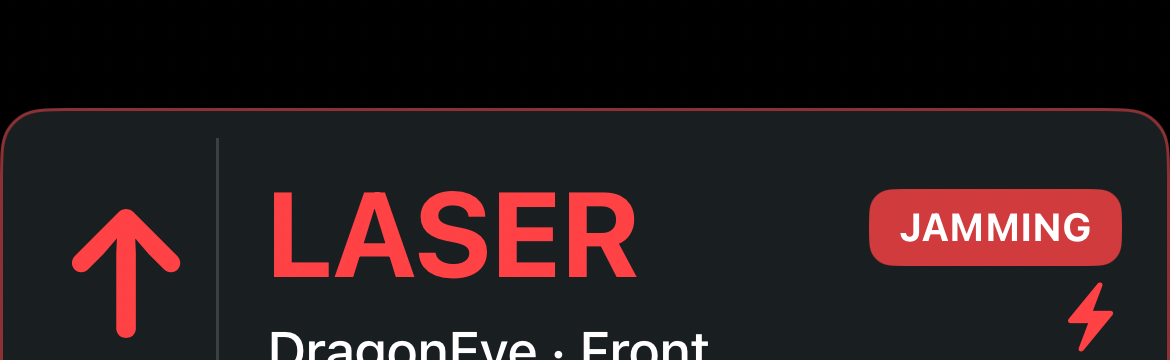
Jammer is actively jamming. Banner can show gun type and sensor (front/rear). Parking / Detection / Defense come from the ALP pad or CarPlay JTK.
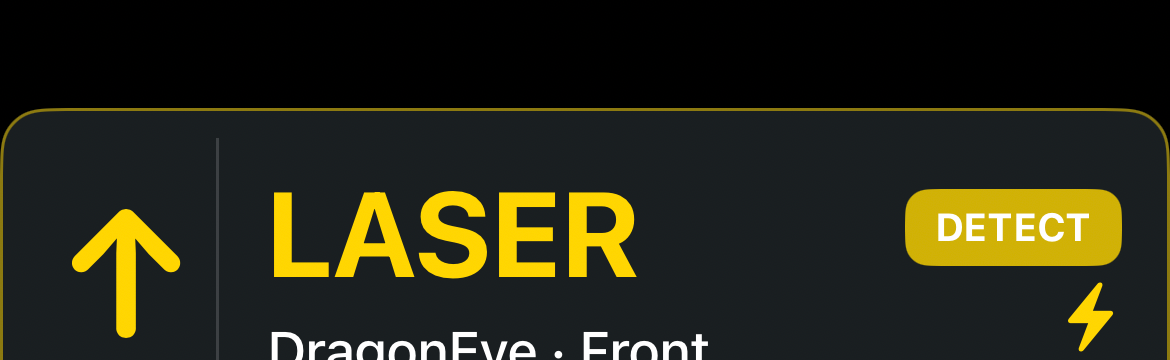
Receive-only: identifies laser without jamming. Useful where jamming is not permitted.
ALP: remembered device + PIN, auto-connect, Ignore ALP mute for radar, ALP radar antenna installed (Data Mode labeling), parking proximity display, voice packs, encounter logging, background reconnect. Device profiles A/B/C can be switched by Location Automations → Laser.
TMG: Auto/Front/Rear role, reconnect, banner duration and colors, PSL/JTK timing, detection-only, CarPlay JTK parity, and encounter logging. Pairing uses the code shown in the device footer.
Add Device → Flic 2 Button. Map Single Press, Double Press, and Hold to None, Mute Detector, Add GPS Lockout, JTK Jammer, or Report Police. Optional CarPlay speedometer connection status.
Sharing a settings screen does not mean every control works on every device. Hidden or disabled rows are normal.
| Family | Works with Dukes | Notes |
|---|---|---|
| Uniden R8 / R8w / R9 / R9w | Yes, Bluetooth | Directional arrows, K Blocks, App Tone Blocks, GPS lockouts, hardware mute, Gatso/MRCD where the detector supports them, Laser TP if the pack is installed. |
| Uniden R4 / R4w | Yes, Bluetooth | Omnidirectional (no direction arrows). K Blocks and App Tone Blocks. No multi-horn arrows. |
| Uniden R7 | No | Does not provide Bluetooth connectivity Dukes can use. |
| Radenso DS1 | Yes, Bluetooth | Uniden-style pairing. No K Blocks UI, no App Tone Blocks. Omnidirectional. |
| Valentine One Gen2 | Yes, ESP / V1connection | Arrows, profiles, Auto Volume (compatible firmware), V1 Mode Display, Gatso RT4 / photo-radar options. No detector K Blocks. Phone GPS lockouts still apply. Temporary Mute supported. |
| AL Priority | Yes | PIN pairing, JTK, parking sensors, profiles A/B/C, encounters. Hardware mute of a radar detector is a detector feature, not ALP. |
| TMG | Yes | BLE pairing, Auto/Front/Rear, JTK, detection-only, encounters. Not a radar detector. |
| Flic 2 | Yes | Single / double / hold actions: mute, lockout, JTK, report police. |
When CarPlay connects, Dukes shows the live map, alerts, navigation, and speed on the car display.
Settings›CarPlay

Voice guidance and alert announcements play.

Police, radar, camera, and laser alerts play. Navigation voice is silenced.

All app audio silenced. Visual banners still appear.

Detector speaker is active. Tap to mute hardware audio. Does not change Dukes app sounds.

Detector speaker silenced. Tap to unmute.
Add or remove a lockout for the active radar signal. Icon color can also reflect custom-feed health.
Some custom feeds are slow or stalled. Lockouts still use local data.
No custom feeds active.
Community feeds are not enabled.

Laser system idle / parking.

Receive-only.

Jammer is in defense when ALP or TMG is connected. Without a laser system, this button can toggle ETA vs full navigation when that option is enabled.

Opens the community report grid (police, traffic, crash, hazard, weather, closed). Order is customizable. Not a one-tap police ping.

Favorites, recents, and destination search.
The large police banner is the primary community police alert. Extra reports, dismissed alerts, cameras, and hazards use compact pills. Details for police filtering live in Police & Community.
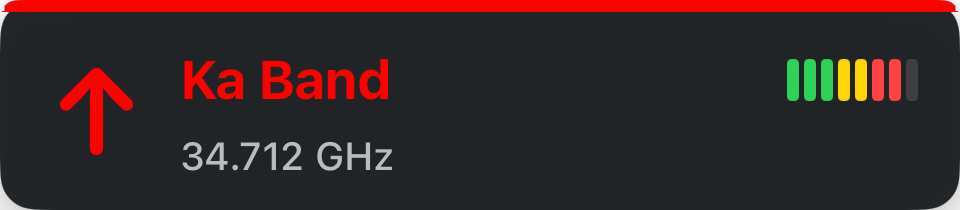
Ka Band — Band, frequency, strength, direction.
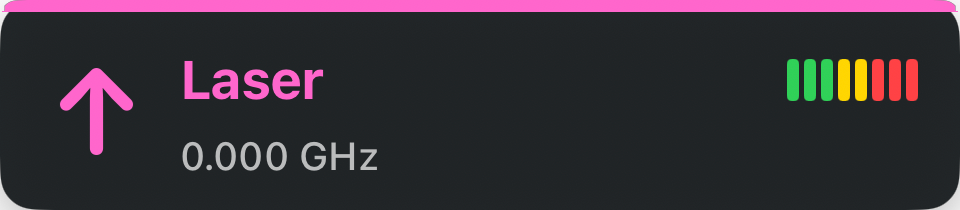
Laser — Police laser from the detector.
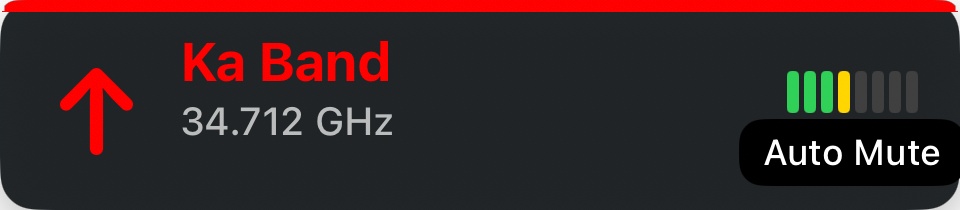
Muted / lockout / Temporary Mute — Signal still shown; audio may be silenced.
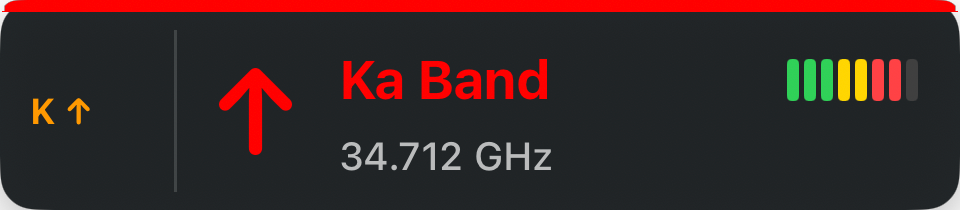
Multi-signal — Primary plus secondary bands.
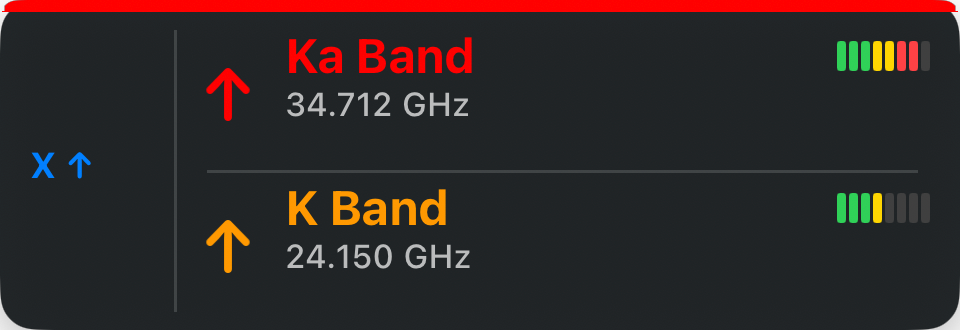
Expert — Full frequency and strength detail.
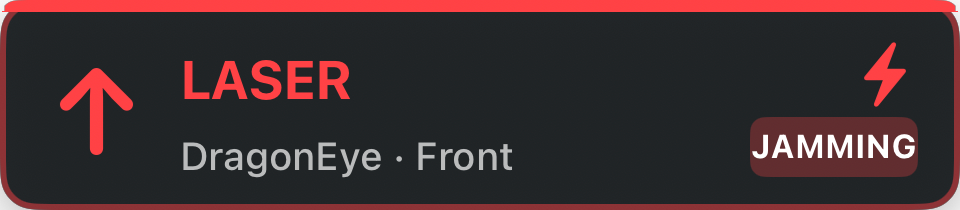
ALP / TMG jamming — Adjust speed, then JTK when ready.
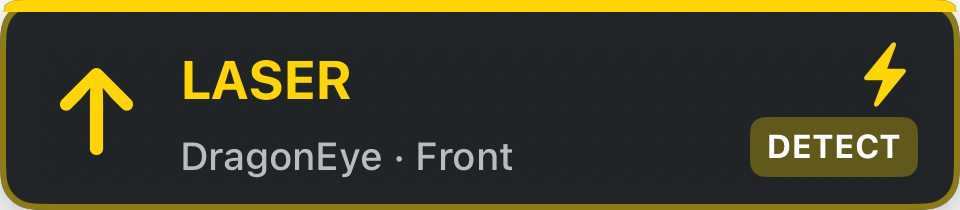
Detection-only laser — Identified, not jammed.
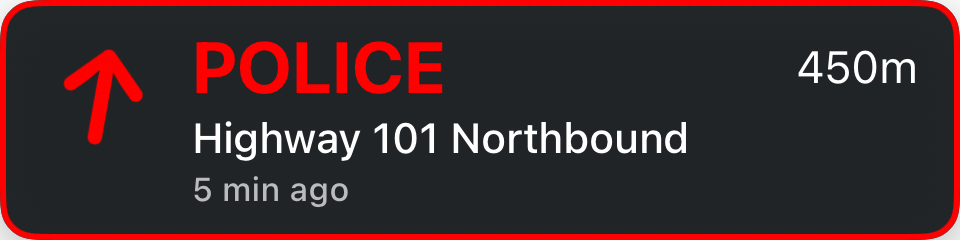
Police — Street and distance from your feeds, after Custom Feed filtering.
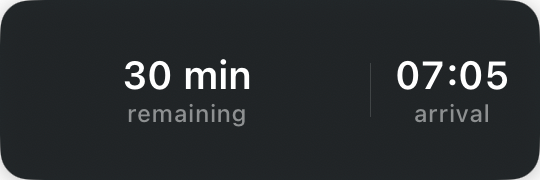
ETA — Remaining time, distance, arrival during navigation.
Compact chips on the CarPlay map for extra or dismissed alerts. Enable pill banners, report age, and voting under Custom Feed Alerts.
The primary police alert stays a full banner. Secondary police reports (up to three extra) become pills so the map is not stacked with banners. Still There can shrink a banner into a pill after you confirm it. Not There removes it.
Pills can show report age (for example “20 min ago”), a freshness star, and confirmation count / latest confirmation age when those Custom Feed options are on. Pill distance and filter settings are separate from the main banner distances.
Flash Nearby Police Pill pulses the pill border when you are close. CarPlay Police Proximity Glow is different — it highlights police map icons, not the pill.
Camera and hazard pills are compact approach chips. Muted radar stays visible as a muted banner or pill so you can still see the signal. Temporary Mute can show on muted radar status.
Short CarPlay toasts also appear for Location Automations (zone active, then default settings restored on exit), GPS lockout added or removed, report sent, Still There / Not There, and ALP/TMG mode changes.

Speed Camera ahead.

Red Light Camera ahead.

License Plate Reader ahead.

Hazard — community-reported.

Aircraft — callsign and distance when Aircraft Awareness is on.
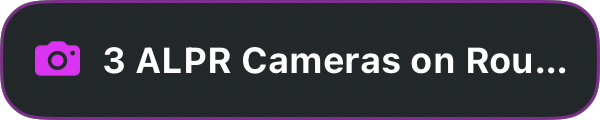
ALPR Route Status — plate readers on the active route (optional).

Location Automation toast — zone active, or default settings restored on exit.
Off by default. Enable Show risk badge. Enhanced Risk Badge adds level and day/time. Optional nearby police summary. When Threat Horizon is showing, it replaces this floating badge.
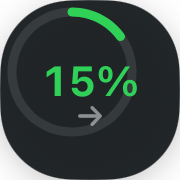
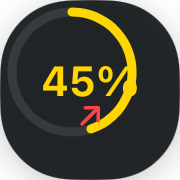
Live Risk Score levels are Neutral, Low, Moderate, High, and Critical. The floating badge commonly shows Low / Moderate / High; Critical is the highest live-risk state (red) when the score is very high. Threat Horizon uses a different scale (Low / Elevated / High / Immediate). Signature HUD labels Immediate as CRITICAL — that is Threat Horizon, not the Risk Score enum.
Low
Moderate

High
Choose Notification Destination: Both (default), Phone Only, CarPlay Only, or Advanced per alert family. Police, cameras, hazards, laser, and radar (with band toggles) can alert while the map is in the background.
Radar re-alert delay and re-alert trigger are separate for unmuted and muted signals. Muted-reason labels can show GPS Lockout, Low Speed, Quiet Ride, Weak Signal, Manual Mute, Temporary Mute, and similar.
Live Background Alerts (Live Activity / widget) is off by default.
When CarPlay is connected, the iPhone can switch to a glanceable dashboard. CarPlay keeps the map. Disconnecting returns the phone map. Toggle under CarPlay → Phone Display (on by default).
Tiles include Radar (priority signal), Alert (police reports), Speed + limit, Threat / risk, and Camera when approaching cameras. Optional Follow app theme and Small/Big element size. V1 mode can appear here if that indicator is enabled.
Voice routing is under App Settings → Voice Alerts. It also affects navigation speech. Radar tones are under Alerts & Audio.
| Mode | What it does |
|---|---|
| Duck Music | Default. Lowers other audio during speech, then restores it. |
| Stop Music | Pauses music until the announcement finishes. |
| Mix (CarPlay) | Mixes with car audio. Intended for CarPlay. |
| iPhone Speaker | Forces speech to the iPhone speaker. |
| Media Audio | Uses media-style playback. Try this if music reaches the head unit but voice alerts do not. |
Test Voice speaks “Police reported ahead.” using the same path as live alerts.
Detector hardware speakers are separate from Dukes tones. Muting the detector button does not mute app voice. Temporary Mute and GPS lockouts can optionally also mute hardware.
CarPlay speech compatibility: Standard, Enhanced, Maximum. Mute options include screen off, police-only when screen off, volume zero, no detector, no ALP, not moving (with idle delay), and mute after CarPlay/Bluetooth disconnect.
Posted limits come from downloaded regional packs first, then OpenStreetMap if needed. Accuracy varies. Correct a wrong limit with the map pencil.
Show speed limit is on by default. Position: Report Button, Separate Circle, or Highway Sign.
Current Road is the recommended display mode. Predictive can show an upcoming lower limit early (Closer / Standard / Earlier / Earliest / Custom). It can differ from the sign you are next to. Optional TMG Auto/RCV use of predictive limits is off by default.
Improved Speed Limit Matching is off by default under Enhanced Speed Limits. It can improve transitions on divided roads, intersections, and nearby parallel roads. It does not guarantee a perfect match.
Reduced Memory Speed Packs is off by default and does not require re-downloading.
Packs cover many US, Canadian, and other regions. Manage them under Data & Downloads. Clearing the cache removes packs and OSM cache.
Off by default under Road Alerts → Aircraft Awareness. Uses public ADS-B positions for awareness only. Patterns such as low/slow circling can look like enforcement — they are not a legal classification.
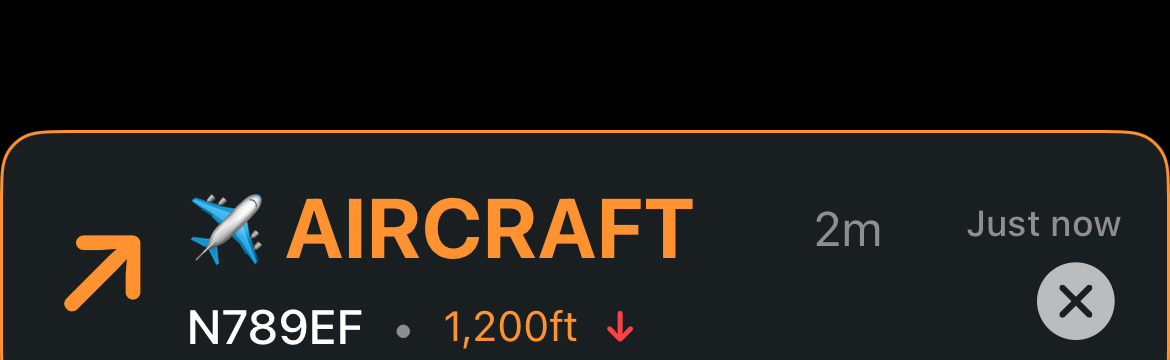
Low altitude, loitering, or matching a watchlist/filter profile. Treat as awareness, not certainty.
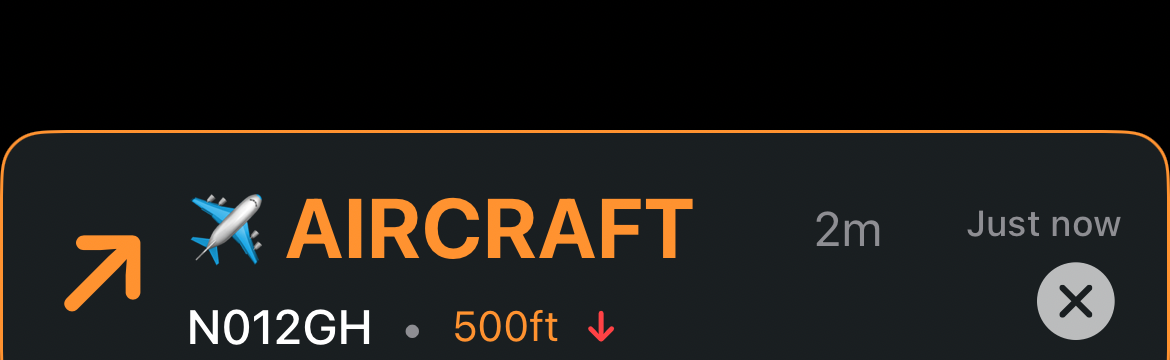
Higher-confidence match against your filters (very low, slow, circling, or a listed identity). Still not a guarantee of enforcement.
Presets: Quiet, Balanced (default), All Aircraft. Watchlist and ignore list. Optional watchlist-only alerts. Phone and CarPlay identity can be Compact or Detailed. Data providers: adsb.lol, adsb.fi, FlightRadar24 (at least one required). Enhanced local identification download is experimental.
Under App Settings → Driving & Modes. These modes trade visuals or background work for heat and battery. Alerts and GPS stay available unless a standby mode has actually paused them.
Heat management: Normal, Cool Driving (fewer phone visuals), Screen-Off Alerts. Auto-reduce when hot is on by default. Preserve CarPlay display is on by default.
Map rendering → Power Saver lowers map and overlay draw rate. Detection, lockouts, routing, and alerts stay the same.
Reduced rendering load is experimental and off by default.
Radar mode optimization (on by default) stands by about five minutes after the detector disconnects. Similar optional savers exist for ALP/TMG, CarPlay, standalone driving, and docked unplugged power. Status lines show Active, Waiting, or Standby. Connecting the missing accessory or power resumes normal operation.
These companion modes are mutually exclusive — turning one on turns the others off.
Enhanced speed limits, CSA overlays, and CSA risk score data. OpenStreetMap attribution is listed here. Prefer Wi-Fi for large packs.
Export a .dukesbackup file under Backup & About. Includes app settings, GPS lockouts, Location Automations, custom feeds, cameras, navigation favorites, detector profiles, speed-limit overrides, and encounters. Import replaces current data on that device.
Navigate with Dukes share extension. Siri shortcuts. Privacy policy is on-device — no account required. Support: dukesradarapp@gmail.com.
No police alerts: add feeds under Custom Feeds, then check Road Alerts → Custom Feed Alerts. Same Road — Strict and On Route need current speed packs and, for On Route, an active route.
Voice but no music ducking, or the reverse: try Media Audio or Mix (CarPlay). Test Voice confirms the speech path.
Detector connected, no banners: confirm Hide detector-specific controls is off, and that a standby mode is not waiting for the detector.
Lockouts not learning: Enable GPS Lockouts, leave and re-enter the site, and check Highway Guard if you are at highway speed.
CarPlay overlays too large or small: set Layout to Horizontal or Vertical to match the screen, then reconnect CarPlay. Map overlay size can scale 100–150%.
Every user-facing setting is listed on the Settings Reference page, grouped like App Settings and the drawer. Search on this site uses the same list.
Start at App Settings in the app. Detector hardware still uses the Bluetooth, Default Settings, Muting, K Blocks, and Location Automations drawer tabs.